Build a task list: create the screen
Build a terminal task list you can add to, complete, filter, and clear. Five lessons take you from an empty screen to the shipped example. Each lesson gives you one change, the command to run, the result to expect, and a complete runnable checkpoint.
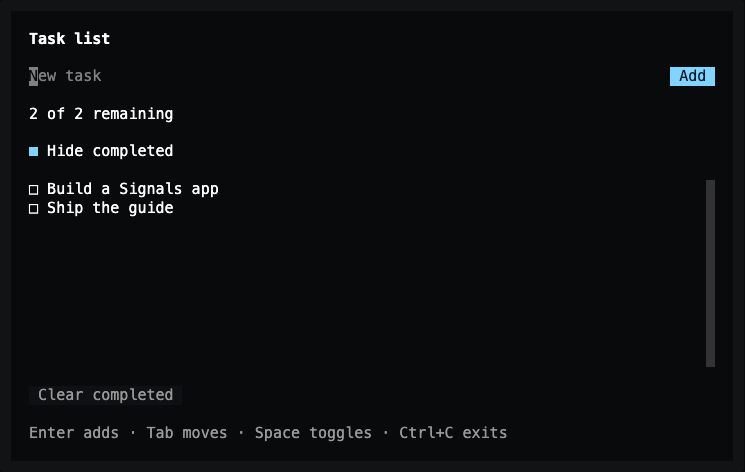
The finished app after lesson 5.
You need Dart 3.10 or later and a checkout of the Noir repository.
noir_signals requires Noir 0.0.2. You will build inside the checkout, which
resolves both packages from the same revision. To add the published packages
to an application of your own instead, use the
install instructions.
This tutorial starts from an empty file. It does not require the first-app tutorial, the hooks guide, or the Signals guide.
Lessons in this tutorial
- Create the screen — you are here.
SignalWidget, cell layout, andExpanded. -
Store tasks and derive the count —
useSignal,useComputed, and named records. - Complete a task — controlled values, stable IDs, and list replacement.
-
Add a task —
useTextEditingControlleranduseRef. -
Filter and clear completed tasks
—
useSignal, a computed view, and a disabled action.
Set up the learner project
From the repository root, resolve the packages and open the companion directory:
dart pub get
cd packages/noir_signals
Every command in this tutorial runs from packages/noir_signals/. Create an
empty example/my_task_list.dart in your editor. That is the file you will
edit in every lesson.
Restart the app between lessons, because each lesson adds or reorders hooks.
Once the hook order stops changing, dart run noir:run example/my_task_list.dart
reloads ordinary build edits and keeps the current state.
To see the finished program before you build it, run the shipped
task-list example with
dart run example/task_list.dart.
Write the first screen
SignalWidget is the host that retains our hooks. The two imports separate
Noir widgets from the optional hooks and Signals integration. runTuiApp
mounts the screen and owns terminal cleanup. enableMouse: true lets the later
buttons and checkboxes receive clicks.
The screen uses integer cell insets and theme colors. Column stacks the
children. Expanded gives the task area the spare rows and keeps the footer at
the bottom. const marks widget configurations that never change.
Put this complete file in example/my_task_list.dart:
import 'package:noir/noir.dart';
import 'package:noir_signals/noir_signals.dart';

void main() => runTuiApp(const TaskListApp(), enableMouse: true);

class TaskListApp extends SignalWidget {
  const TaskListApp({super.key});

  @override
  Widget build(BuildContext context) {
    final theme = Theme.of(context);

    return Container(
      color: theme.surface,
      padding: const EdgeInsets.symmetric(horizontal: 2, vertical: 1),
      child: Column(
        crossAxisAlignment: CrossAxisAlignment.start,
        spacing: 1,
        children: [
          const Text(
            'Task list',
            style: TextStyle(fontWeight: FontWeight.bold),
          ),
          const Expanded(child: Text('Your tasks will appear here.')),
          Text('Ctrl+C exits', style: TextStyle(color: theme.textMuted)),
        ],
      ),
    );
  }
}
Run it
dart run example/my_task_list.dartYou should see the title, the placeholder, and the exit hint. Ctrl+C exits through Noir’s normal cleanup.
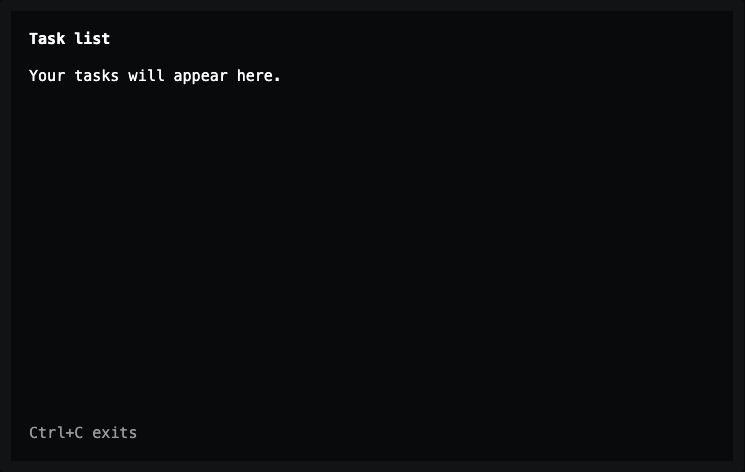
Lesson 1 — the screen is mounted. It has no task state yet.
The screen has no hooks yet, so nothing changes while it runs. The next lesson gives the same widget its own state.